
AI Image Quality Improve Karne Ke Hidden Settings – Pro Level Secrets Jo Aapko Sabse Aage Le Jayenge
Introduction
Kabhi aapne socha hai ki same AI tool use karne ke baad bhi kisi ki image ultra realistic aur HD aati hai, aur kisi ki bilkul average?
Sach ye hai ki difference tool me nahi hota… difference hota hai settings aur samajh me. Main bhi shuru me bas simple prompt likh kar images generate karta tha. Result?
Kabhi blur, kabhi weird face, kabhi bilkul flat image
Phir maine deep me jaake samjha ki AI tools me kuch hidden settings hoti hain jo agar sahi use kar lo, to image ka level hi change ho jata hai.
Aaj agar aap:
- Instagram ke liye high-quality visuals banana chahte ho
- YouTube thumbnails ko eye-catching banana chahte ho
- Ya apni AI images ko real camera jaisa look dena chahte ho
To ye article aapke liye ek complete guide hai
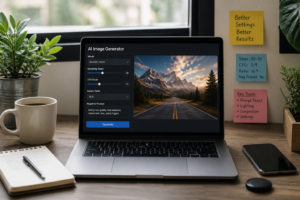
Isme main aapko wo secrets bataunga jo beginners ignore kar dete hain, lekin pros daily use karte hain.
AI Image Quality Low Kyu Aati Hai?
Sabse pehle root problem samajhte hain.
Agar aapki AI images expected level ki nahi aa rahi, to iska matlab ye nahi ki AI weak hai. Reality ye hai ki input weak hai.
Most beginners ye mistakes karte hain:
- Bahut short prompt likhna
- Koi detail na dena
- Default settings pe hi rely karna
- Lighting aur environment ignore karna
Example dekhiye:
“Boy standing”
Result: basic, flat, boring
“A stylish young boy standing in a modern city at night, neon lights, cinematic lighting, ultra realistic, DSLR quality”
Result: sharp, detailed, eye-catching
Simple rule:
Jaisa input doge, waisa output milega
Resolution vs Real Quality – Truth Kya Hai
Bahut log sochte hain:
“Resolution badha diya = Quality improve”
Ye half truth hai.
Resolution sirf image ka size hota hai, quality nahi.
Example Samjho
- 512×512 small image
- 1024×1024 bigger image
Lekin agar image me detail hi nahi hai… to bada size sirf flaws ko aur bada dikhata hai
Real Quality Kis Par Depend Karti Hai?
- Prompt detailing
- Lighting description
- Texture clarity
- AI settings
Isliye pehle detail pe focus karo, phir resolution badhao.
Hidden Setting #1 – Prompt Detailing (Game Changer)
Ye sabse powerful factor hai. agar aapne ye master kar liya, to 50% problem wahi solve ho jayegi.
Prompt Detailing Kya Hai?
AI ko clearly batana ki aap kya chahte ho — har angle se.
5 Important Elements Add Karo
1. Subject
Kaun hai? (boy, girl, product)
2. Environment
Kahan hai? (city, office, forest)
3. Lighting
Light kaisi hai? (soft, cinematic, neon)
4. Camera Details
DSLR, lens type, depth
5. Quality Tags
Ultra realistic, high detail, 4K/8K
Example
Weak:
Girl photo
Strong:
A beautiful Indian girl in traditional saree, standing in golden sunlight, soft lighting, ultra realistic skin texture, DSLR photography, 85mm lens, sharp focus, 8K
Difference clear hai — detail hi quality banati hai.
Bonus Words Jo Quality Boost Karte Hain
Prompt ke end me add karo:
- ultra realistic
- highly detailed
- sharp focus
- cinematic lighting
Hidden Setting #2 – Aspect Ratio (Composition Control)
Ye choti si setting hai… lekin impact bada hai.
Aspect Ratio Kya Hai?
Image ka shape.
Common Ratios
- 1:1 → Instagram post
- 9:16 → Reels / Shorts
- 16:9 → YouTube
Galti Jo Log Karte Hain
Random ratio use kar lete hain.
Result:
- Subject cut ho jata hai
- Image awkward lagti hai
Best Practice
- Full body → 9:16
- Landscape → 16:9
- Product → 1:1
Right ratio = better composition
Hidden Setting #3 – Sampling Steps (Detail Control)
Ye thoda technical hai, lekin easy hai samajhna.
Sampling Steps Kya Karte Hain?
AI image ko refine karta hai step by step.
- Kam steps → fast but less detail
- Zyada steps → more detail
Ideal Range
- 10–20 → basic quality
- 20–30 → balanced
- 25–35 → best
Important Note
Zyada steps ka matlab hamesha better nahi hota.
50+ steps:
- Time waste
- Over-processing
Sweet spot: 25–35
Hidden Setting #4 – CFG Scale (Control Level)
Ye decide karta hai ki AI aapki baat kitni sunega
CFG Scale Explained
- Low (5–7) → creative freedom
- Medium (7–9) → balanced
- High (10–15) → strict
Best Range
7–9 most cases me perfect
Common Mistake
Log max kar dete hain.
Result:
- Over sharp
- Unnatural image
Real-Life Example
Pehle:
Man sitting in office
Result: normal image
Baad me:
A professional businessman sitting in a modern glass office, natural window lighting, ultra realistic, DSLR shot, cinematic look, sharp focus
Result:
- Realistic lighting
- Better detail
- Premium feel
Practical Tips (Apply Today)
Aaj se ye follow karo:
- Prompt me detail add karo
- Random settings avoid karo
- Sampling steps 25–35 rakho
- CFG 7–9 use karo
- Aspect ratio sahi choose karo
Part 2 – Advanced Hidden Settings Jo Aapki AI Image Quality Ko Next Level Par Le Jayengi
Part 1 me aapne fundamentals clear kar liye ab time hai un advanced settings ko samajhne ka jo beginners ignore kar dete hain, lekin professionals daily use karte hain.
Agar aap sach me AI Image Quality Improve Karna chahte ho, to ye part sabse important hai.
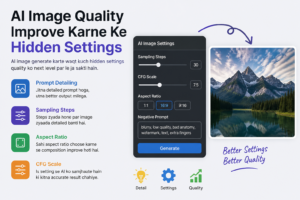
Hidden Setting #5 – Negative Prompt
Agar aap sirf ek setting perfect use kar lo… to wo hai Negative Prompt.
Negative Prompt Kya Hota Hai?
Simple language me:
AI ko batana ki aapko image me kya nahi chahiye
Ye Itna Powerful Kyu Hai?
AI kabhi-kabhi unwanted cheeze add kar deta hai:
- Blurry face
- Extra fingers
- Distorted body
- Low quality texture
- Watermark ya text
Negative prompt in sabko remove karta hai.
Best Negative Prompt (Copy-Paste Ready)
blurry, low quality, bad anatomy, extra fingers, distorted face, watermark, text, noise, grain
Real Impact
Without Negative Prompt:
Image me flaws, blur aur weird details
With Negative Prompt:
Clean, sharp aur professional output
Pro Tip:
Isko har prompt ke saath use karo — ye ek hidden quality filter hai.
Hidden Setting #6 – Seed
Agar aapko same style repeat karna hai… to ye setting gold hai.
Seed Kya Hota Hai?
Seed ek number hota hai jo AI ko batata hai ki image ka base pattern kya hoga.
Use Kahan Karein?
- Branding consistency ke liye
- Same style images banane ke liye
- Social media theme maintain karne ke liye
Kaise Use Karein?
Ek perfect image generate karo
Uska seed save kar lo
Ab future me same seed use karoge to similar result milega
Important Samajh
- Random seed → har baar new output
- Fixed seed → consistent style
Creators ke liye ye bahut powerful tool hai.
Hidden Setting #7 – Image Upscaling
Ye trick low quality image ko ultra HD bana sakti hai.
Upscaling Kya Hota Hai?
Image ka size badhana… bina quality lose kiye
Normal vs AI Upscaling
Normal zoom → blur
AI upscaling → detail enhance
Kab Use Karein?
- YouTube thumbnails
- Instagram posts
- Printing purpose
Best Workflow
Pehle medium quality image generate karo
Phir usko upscale karo
Result: zyada sharp aur detailed image
Hidden Setting #8 – Model & Style Selection
Sabse underrated factor — log ignore kar dete hain.
Problem Kya Hai?
Beginners ek hi default model use karte rehte hain.
Result:
- Same type images
- Limited quality
Reality Kya Hai?
Different models = different outputs
Types of Models
- Realistic → Human photos
- Anime → Cartoon
- Artistic → Painting
Pro Tip
Apne purpose ke hisaab se model choose karo:
- Instagram → realistic
- Thumbnail → dramatic
- Design → artistic
Hidden Insight
Kuch models lighting aur skin detail me better hote hain. Experiment karna hi best way hai discover karne ka.
Hidden Setting #9 – Lighting Control
Agar aapne lighting master kar li… to image ka level automatically upgrade ho jayega.
Lighting Kyu Important Hai?
Lighting = Mood + Realism + Depth
Best Lighting Keywords
Prompt me ye add karo:
- soft lighting
- golden hour lighting
- cinematic lighting
- studio lighting
- neon lighting
Example
Without lighting:
Man sitting
With lighting:
Man sitting in a modern room with soft cinematic lighting and natural shadows
Difference: clear & premium look
Hidden Setting #10 – Camera & Lens Details
Ye ek pro-level hack hai jo beginners miss karte hain.
Kya Add Karein?
- DSLR
- 50mm lens
- 85mm portrait lens
- depth of field
- bokeh effect
Iska Impact
Image me:
- Natural blur
- Background separation
- Professional feel
Example Prompt
DSLR photography, 85mm lens, shallow depth of field, bokeh background
Output: studio-quality image
Real-Life Example (Before vs After)
Before
Prompt:
Boy in gym
Result:
- Flat image
- No depth
- Average
After
Prompt:
A muscular young man working out in a modern gym, cinematic lighting, sweat details, ultra realistic, DSLR 85mm lens, sharp focus, depth of field
Negative Prompt:
blurry, low quality, distortion
Settings:
- Steps: 30
- CFG: 8
Result:
- Realistic muscles
- Sharp detail
- Professional lighting
Practical Tips
Aaj se ye implement karo:
- Negative prompt always use karo
- Seed save karo (best images ke liye)
- Upscaling use karo final output me
- Lighting describe karo
- Camera details add karo
Common Mistakes (Avoid Karna Zaroori Hai)
Sirf “HD” likhna
Over complicated prompt
Har setting max karna
Model change na karna
Negative prompt ignore karna
Rule yaad rakho:
Smart settings + clear prompt = best result
Part 3 – Pro Prompt Framework, Realistic Secrets, Pros & Cons, FAQs Aur Final Conclusion
Ab tak aapne almost saare hidden settings samajh liye hain. Lekin ab sabse important step hai in sabko ek system me use karna.
Is final part me aap seekhenge:
- Perfect prompt ka formula
- Realistic face & skin secrets
- Pros & Cons
- FAQs
- Powerful conclusion
Ultimate Prompt Framework (Pro Formula)
Agar aap random prompt likhoge… to random result milega. Lekin agar aap structure follow karoge… to predictable high-quality output milega.
Perfect Prompt Formula
Subject + Environment + Lighting + Camera + Quality + Mood
Example
Basic Prompt:
Girl sitting
Result: average
Advanced Prompt:
A beautiful Indian woman sitting in a luxury café, golden sunlight, cinematic lighting, DSLR 85mm lens, ultra realistic skin texture, shallow depth of field, warm tones, sharp focus, 8K
Result: Premium, realistic image
Kyu Kaam Karta Hai Ye?
Kyuki AI ko clarity milti hai:
- Scene kya hai
- Light kaisi hai
- Camera ka feel kya hai
- Final output kaisa hona chahiye
Realistic Face Generate Karne Ka Secret
AI images me sabse zyada issue face me hi aata hai.
Common Problems
- Eyes uneven
- Lips weird
- Skin plastic
- Expression unnatural
Solution – Face Detailing
Prompt me ye words add karo:
- symmetrical face
- realistic eyes
- natural skin texture
- detailed eyelashes
- sharp facial features
- natural expression
Example
Bad:
Beautiful girl
Good:
Beautiful Indian girl with symmetrical face, realistic eyes, natural skin texture, soft smile, detailed facial features
Result ka difference clearly visible hota hai.
Skin Texture Secrets
Beginners ek mistake karte hain — skin ko over smooth bana dete hain.
Result: doll jaisa face
Correct Keywords
- realistic skin pores
- natural texture
- subtle imperfections
- soft glow
Avoid These
flawless skin
perfect skin
ultra smooth
Ye artificial bana dete hain.
Best Combo
realistic skin texture with natural pores and soft cinematic glow
Expression & Emotion Control
Ek achi image sirf clear nahi hoti — usme emotion hota hai.
Prompt Me Add Karo
- confident smile
- serious look
- happy expression
- candid moment
Example
Man portrait
Man portrait with confident smile and focused eyes
Image zyada alive lagti hai.
Background Detailing Ka Impact
Background vague hoga to image fake lagegi.
Weak
in room
Strong
in a modern luxury office with glass walls and city skyline view
Detail = realism
Color Grading & Cinematic Look
Agar aap image ko premium feel dena chahte ho… to color tone define karo.
Popular Styles
Warm Tone
warm cinematic lighting
Cozy & premium feel
Cool Tone
cool blue lighting
Professional look
Moody Tone
dark cinematic shadows
Dramatic feel
Quick Editing Tips
AI generate karne ke baad thoda polish zaroor karo.
Basic Adjustments
- Brightness +5
- Contrast +10
- Sharpness +5
Small tweaks = big difference
Pros & Cons
Pros
- High-quality images without camera
- Time saving
- Cost effective
- Unlimited creativity
- Social media growth boost
Cons
- Learning curve
- Inconsistent results
- Over editing risk
- Tool limitations
FAQs
Q1. Kya sirf “HD” likhne se quality improve hoti hai?
Nahi, real quality prompt aur settings se aati hai.
Q2. Best sampling steps kya hone chahiye?
25–35 ideal range hai.
Q3. CFG scale kitna rakhe?
7–9 best balanced output deta hai.
Q4. Negative prompt zaroori hai kya?
Haan, ye unwanted flaws remove karta hai.
Q5. Realistic face kaise banaye?
Face detailing + lighting + skin texture use karo.
Q6. Same image style repeat kaise karein?
Seed value save karke use karo.
Final Conclusion
Sach ye hai ki AI image quality improve karna koi rocket science nahi hai…
lekin bina knowledge ke ye confusing zaroor lagta hai.
Aapne is guide me wo sab secrets seekh liye jo:
- Beginners ignore karte hain
- Professionals daily use karte hain
Ab aapke paas power hai:
- Better prompts likhne ki
- Hidden settings use karne ki
- Professional images create karne ki
Final Action Plan
Aaj hi ek image generate karo
Is article ke sab points apply karo
Before vs After compare karo
Aap khud dekhoge — difference shocking hoga